Guides · Setup · 2 min read
Setting up your Homeward card
Switch it on, add it in the Find My app on your iPhone, and give it a name you will recognise. Plus charging and care.
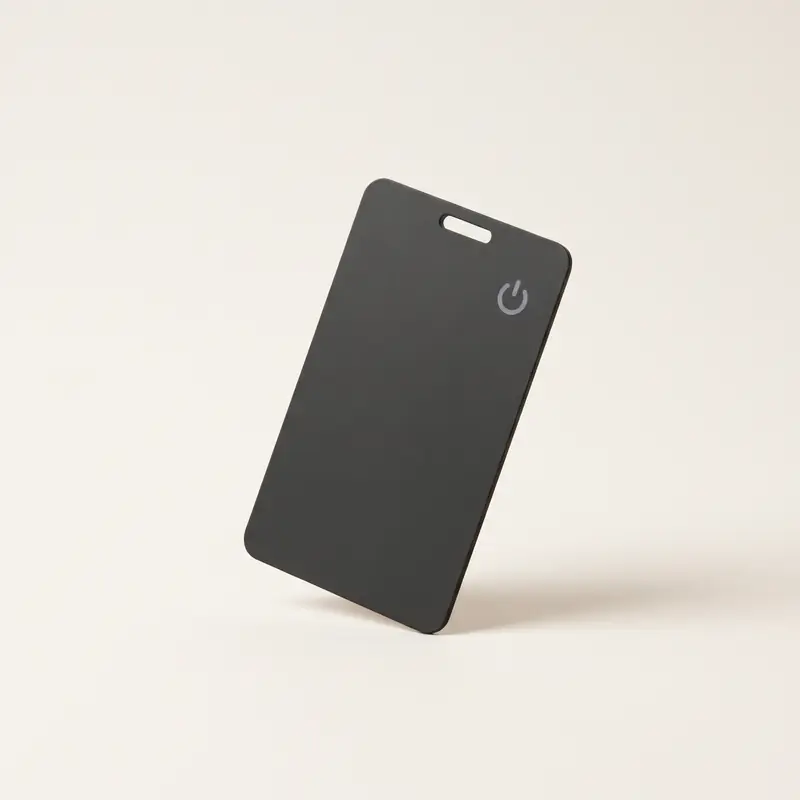
The Homeward card is set up once, then it sits in your wallet or glovebox and you forget it is there. Setting it up takes a few minutes with your iPhone in your hand. It works with the Find My app on iPhone only, not with Android.
Before you start
- Have your iPhone nearby, with Bluetooth on.
- Open the Find My app once, so it is ready.
- Charge the card on the wireless charger from the box if Find My later shows a low battery.
Add it in Find My
- Switch it on. Press the button on the card.
- Open Find My. Go to the Items tab and choose to add a new item.
- Follow the steps on screen. Add it like any other item. There is no other app, no account and no subscription.
- Name it. Pick a name that says where it lives, such as "Car" or "Blue suitcase". With several cards, this is what keeps them apart.
Test it at home
Put the card somewhere in the house, then play a sound on it from the Find My app. The built-in speaker helps you find it under a seat or a cushion. Doing this once now means you know what it sounds like on the day you need it.
Charging
The card has a built-in rechargeable battery and charges wirelessly. Lay it on the included charger when Find My tells you the battery is low. There is one charger per parcel, so with a 2-pack or 4-pack the cards take turns.
Care
- Wipe it with a dry cloth.
- Do not bend, cut, puncture or heat it, and never put it in a fire. It has a lithium battery inside.
- Keep it away from small children. It is not a toy.
If it does not show up
Check that Bluetooth is on and that you are using an iPhone. Press the button again to make sure the card is switched on, then try adding it once more. Still stuck? Email us with your order number and a person from our team answers.